How to Add Virtual Try-On to Your Shopify Store
Virtual try-on lets shoppers see products on themselves before they buy. This guide explains how it fits your store, the ways to add it, and how to launch it cleanly on Shopify.
By the TryItOn team · ~10 min read
What virtual try-on is, and why it matters on Shopify
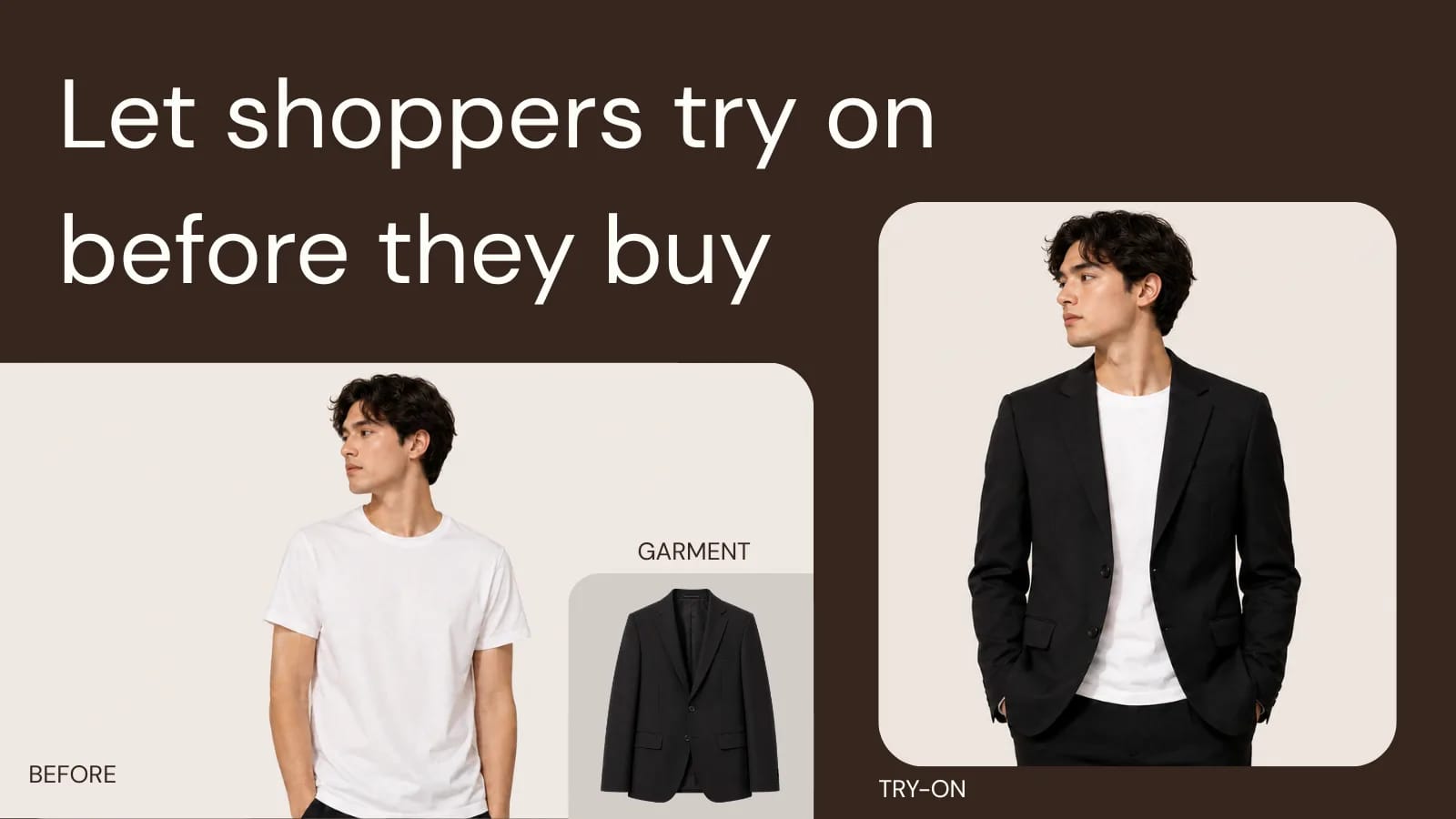
Virtual try-on uses AI to render a product onto a shopper — clothing on their photo, a hairstyle on their face, eyewear or accessories in place — so they can judge fit and look before adding to cart. Instead of imagining how an item works for them, they see a realistic preview generated in seconds. For a Shopify store, that turns a flat product image into something personal and interactive.
The reason this matters online is simple: shoppers cannot touch, hold, or wear anything before buying. That uncertainty is the friction that causes hesitation and returns. Virtual try-on closes part of that gap. It gives people confidence at the exact moment they are deciding, and it does so without staff time, fitting rooms, or extra photography. On Shopify specifically, where storefronts are highly templated and competitive, an interactive try-on experience helps a product page feel considered rather than generic.
Where it fits in the shopper journey
Try-on is most valuable at the decision points where doubt lives. The product detail page is the obvious home: a shopper who is already interested can see the item on themselves and resolve the last questions in their head. But it also has a role earlier, in discovery, where letting people preview several options keeps them browsing instead of bouncing.
Think of it as reducing the mental cost of a purchase. The smoother and more obvious the try-on is, the more naturally it slots into how people already shop your catalog.
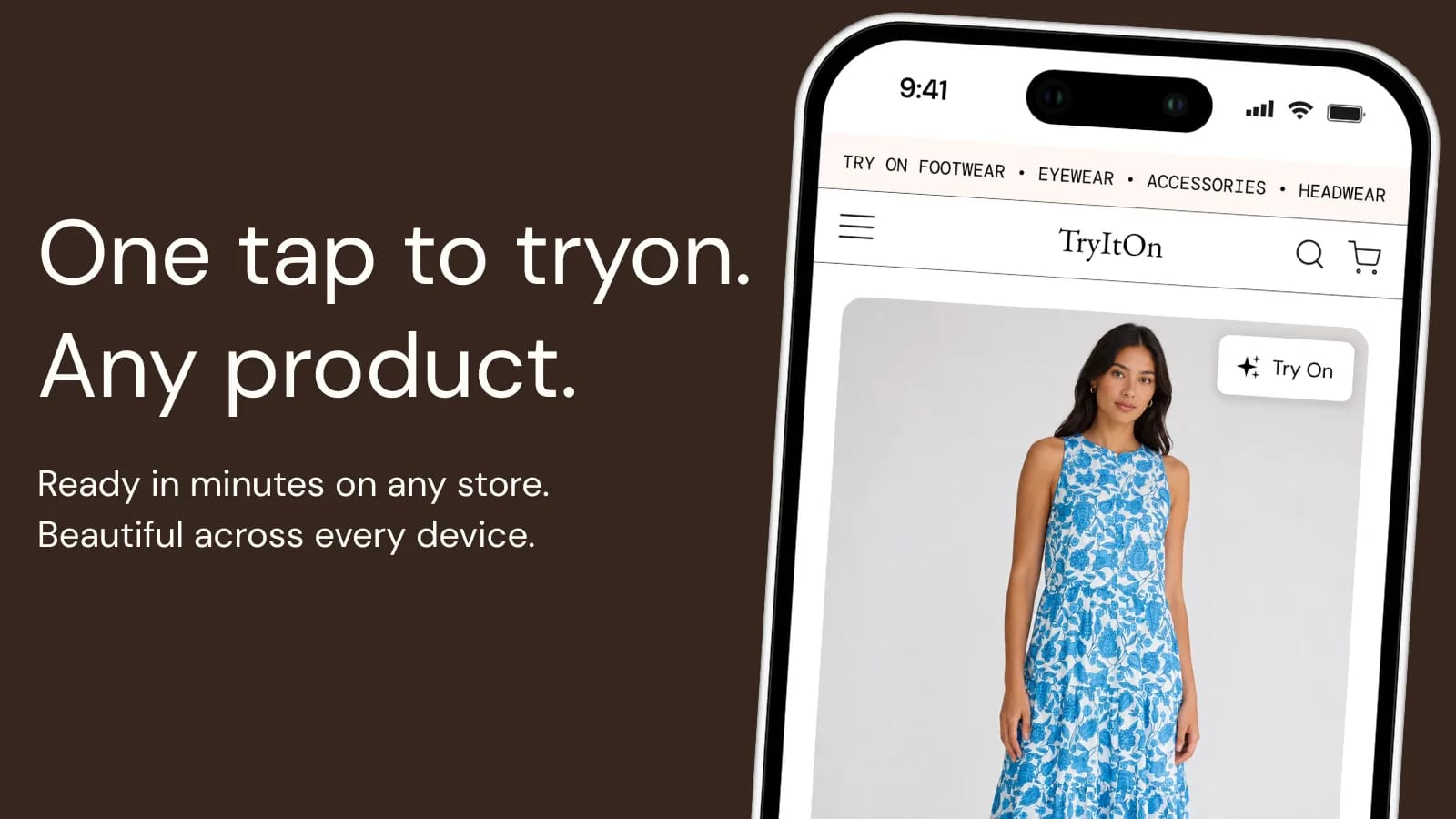
- Product page: the primary placement — a clear try-on button near the buy button, so it supports the decision rather than distracting from it.
- Collection and search: lighter entry points where shoppers can preview before committing to a single product.
- Post-add and sharing: letting a shopper save or share a result can extend the moment beyond a single session.
Ways to add virtual try-on to Shopify
There is no single right way to integrate. The best choice depends on how much control you want, how custom your theme is, and how much engineering time you have. TryItOn supports several paths so you can match the integration to your store rather than rebuilding around the tool.
- Shopify app: the fastest route for most merchants — install TryItOn from the Shopify App Store, connect your catalog, and place the try-on experience through theme settings without writing code.
- Embeddable widget: a small snippet you drop into a theme section or page, useful when you want try-on in a specific spot or on a custom template.
- API: direct programmatic access for teams that want to build a fully bespoke experience, integrate with a headless storefront, or control the flow end to end — see the virtual try-on API guide or the developer overview.
- Browser extension and web app: complementary surfaces that let shoppers try items on across the wider web and in a standalone experience, beyond your storefront alone.
What the TryItOn Shopify app actually does
To make that concrete, here is what the TryItOn Virtual Try-On AI app adds to a Shopify store once it is installed. It is a theme app extension rather than a pasted script, so it installs on any Online Store 2.0 theme, and it leaves nothing behind if you remove it.
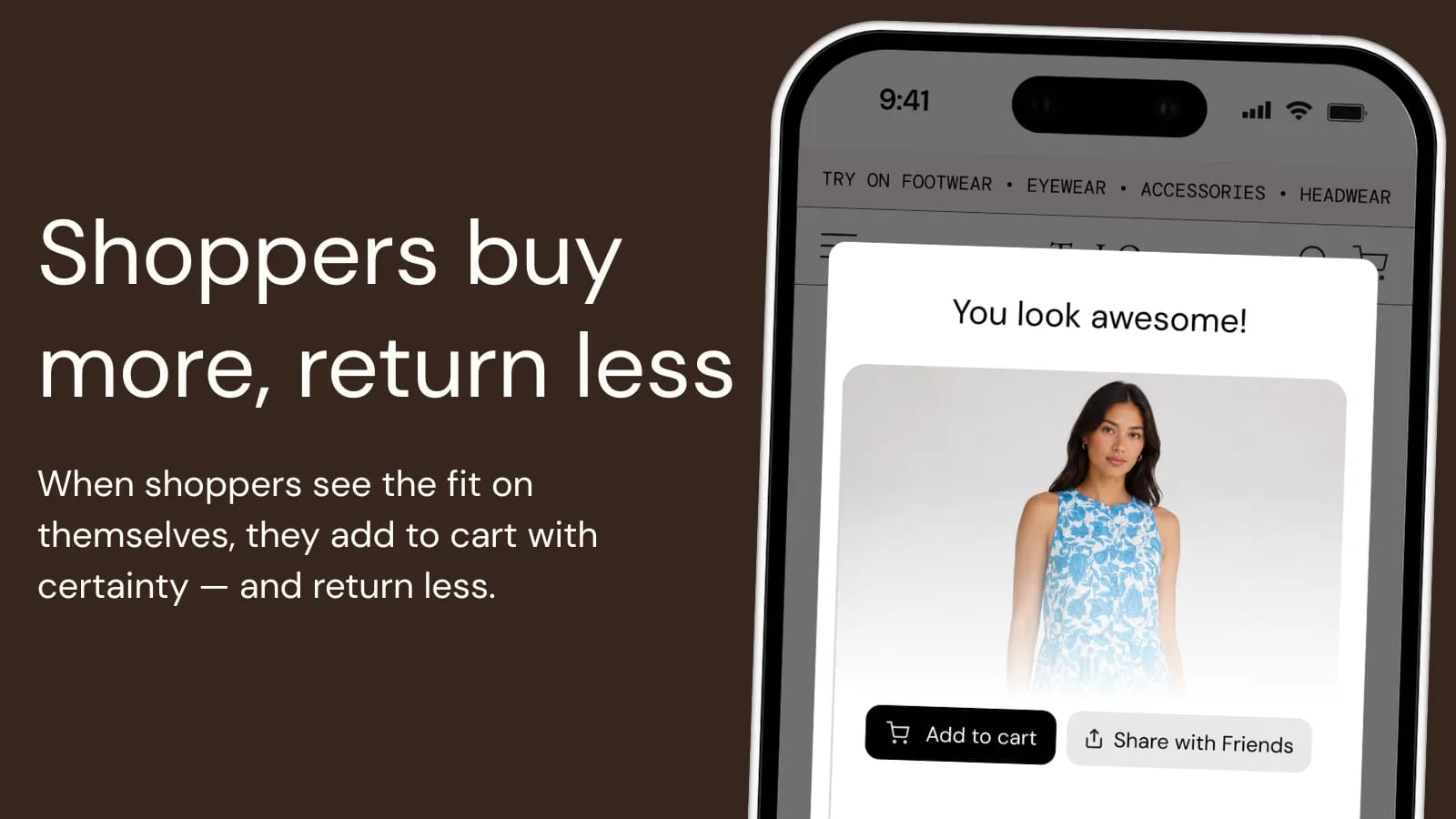
A shopper taps the try-on button on a product image, adds a photo of themselves, and sees the item on them in seconds. From that result they can add to cart or share the look with a friend, which keeps the moment inside your funnel instead of ending it.
- Try-on across categories: clothing, footwear, eyewear, jewelry, and headwear, so a single install covers most of a fashion catalog.
- Per-product control: enable try-on for the collections where look and fit drive returns, and leave the rest of your catalog untouched.
- Add to cart and sharing: shoppers can buy straight from the result or share it, which brings their friends back to the same product page.
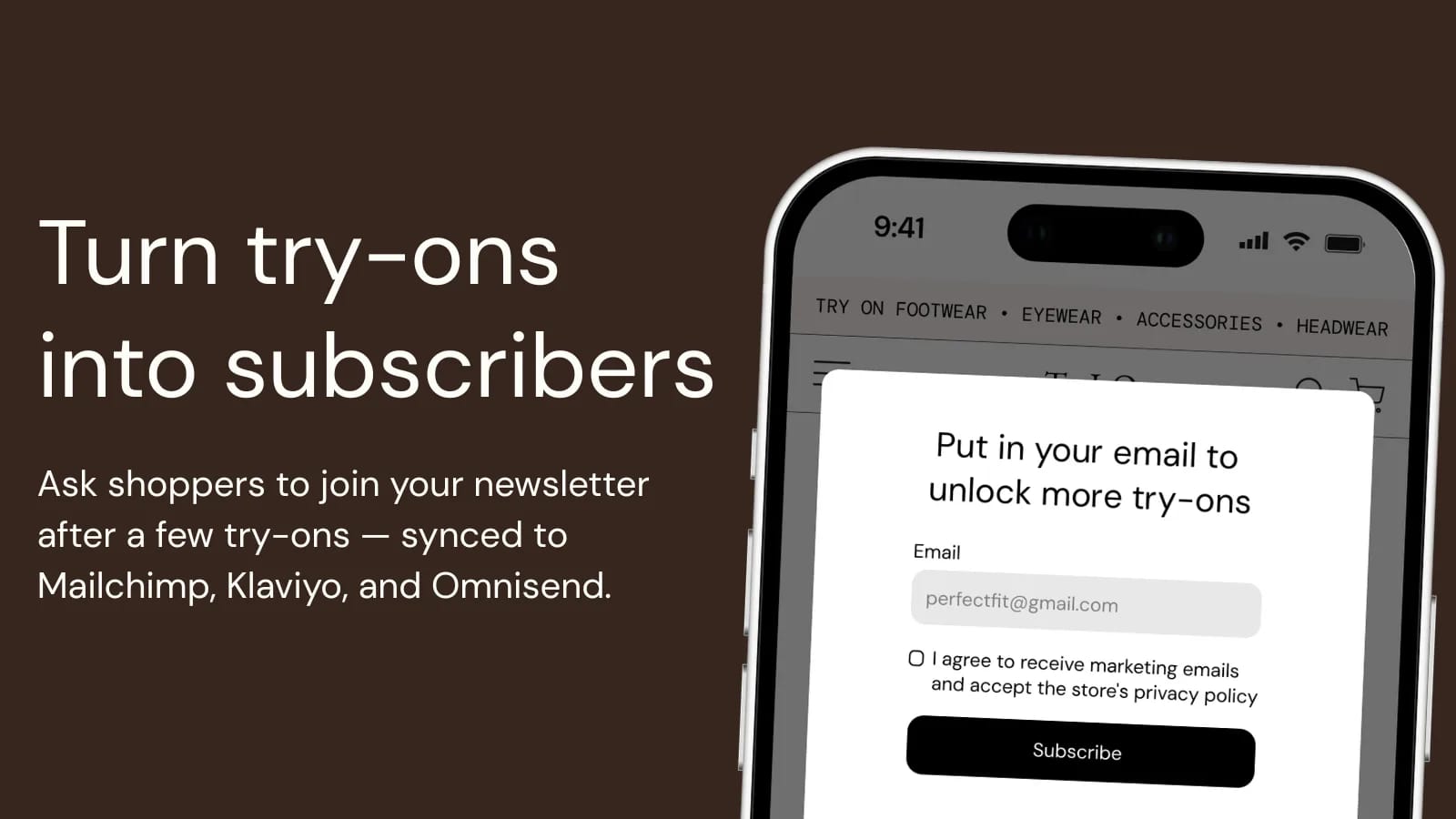
- Email capture: ask for an email after a few try-ons and sync it to Mailchimp, Klaviyo, Omnisend, or your Shopify customer list.
- Analytics and attribution: try-on activity, add-to-cart, and conversion in one dashboard, with pixel attribution tying try-ons to real orders.
- Branding and spend controls: set the button text, colors, and placement, and cap daily try-ons so costs stay predictable.
Turning try-ons into an audience you own
A try-on is a moment of high intent, and most of the shoppers having it are anonymous. The app can use that moment to ask for an email — after a shopper has had a few free try-ons, not before, so the ask lands once they have already seen the value.
Consent is explicit, and the address flows straight into the list you already use, whether that is Mailchimp, Klaviyo, Omnisend, or your Shopify customer records. The practical effect is that a feature you added to lift conversion also grows the audience you can market to later, without a separate popup fighting for attention.
Implementation, step by step
Adding try-on does not have to be a large project. A typical rollout looks like a short sequence of practical steps, each of which you can validate before moving on. The goal early is a clean, working experience on a handful of products rather than a full-catalog launch on day one.
- Connect: install the Shopify app or add the widget snippet, then link the products and images you want to enable.
- Map your catalog: make sure product images are clean and well lit, and tag categories so the right try-on method is applied to clothing, hair, eyewear, or accessories.
- Place the entry point: add a visible try-on button on the product page near the add-to-cart action, with clear wording so shoppers know what it does.
- Test on real products: run try-on across a representative sample, on mobile and desktop, and check that results look believable for your specific items.
- Launch and expand: start with your best-fit categories, then widen coverage as you confirm the experience holds up.
Which product categories work best
Virtual try-on shines where appearance and fit drive the decision and where a static photo leaves real questions unanswered. Apparel is the clearest example: tops, dresses, and outerwear all benefit because shoppers want to picture the garment on a body like theirs. Hairstyles and haircuts are a strong fit too, since the result is intensely personal and hard to imagine otherwise.
Accessories such as eyewear, jewelry, and hats also do well, because placement and proportion matter and are difficult to judge from a product shot alone. Categories where fit is purely about measurement, or where the look barely changes between options, see less lift. A good rule of thumb: if a customer would naturally want to hold it up to a mirror in a physical store, it is a strong candidate for virtual try-on online.
Measuring impact without chasing vanity numbers
You do not need a complicated analytics setup to know whether try-on is helping. Start by watching the behaviors that sit closest to the feature. How many shoppers engage with try-on once it is visible? Of those, how many go on to add to cart compared with shoppers who never engaged? Over time, are products with try-on enabled seeing healthier conversion and fewer returns than comparable products without it?
Treat it as an experiment rather than a guarantee. Roll it out to a subset of products or traffic, give it enough time to gather a meaningful signal, and compare like with like. The qualitative side matters as well — pay attention to support tickets, reviews, and direct feedback, because reduced uncertainty often shows up first in what customers stop asking about. For the returns side specifically, our guide on reducing ecommerce returns with virtual try-on covers which reason codes to watch.
Common pitfalls to avoid
Most disappointing rollouts come down to a few avoidable mistakes rather than the technology itself. Knowing them in advance keeps your launch smooth.
- Hiding the entry point: if the try-on button is buried below the fold or unclearly labeled, shoppers never discover it. Keep it visible near the buy action.
- Poor source imagery: low-quality or inconsistent product photos produce weaker results. Clean, well-lit images make a visible difference.
- Enabling the wrong categories: turning try-on on everywhere dilutes the experience. Start where it genuinely helps the decision.
- Ignoring mobile: most Shopify traffic is mobile, so test there first and make sure the flow feels fast and effortless on a phone.
- Launching and forgetting: treat it as something to observe and refine, not a one-time install you never revisit.
Getting started with TryItOn
If you run a Shopify store and want to add virtual try-on, the simplest path is the TryItOn Shopify app: install it from the Shopify App Store, connect your catalog, and place the experience through your theme. You can see the merchant-facing detail on the Shopify virtual try-on page, including Shopify plans and pricing. If you need more control, the embeddable widget lets you position try-on exactly where you want it, and the API gives engineering teams the freedom to build a fully custom flow, including for headless storefronts.
A sensible starting point is to pick one or two strong categories, enable try-on on a focused set of products, and put a clear button on those product pages. From there you can watch how shoppers engage, refine the placement and imagery, and expand coverage as the experience proves itself. The aim throughout is the same — give shoppers the confidence to buy by letting them see the product on themselves first. If you would rather talk it through first, get in touch with the team.